Learn how to review and update workspace details, line item calculation, and notification settings.
Last updated: July 5, 2026
This guide explains how to review and update workspace-level settings, line item calculation, and notifications. You can manage settings that apply across the workspace, such as timezone, fiscal year, date format, currencies, and exchange rates.Workspace settings can change how records calculate amounts, show dates, restrict access by IP address, send notifications, and display currency values. When a customer reports unexpected totals, dates, access errors, or missing notifications, review workspace settings before treating the issue as a product bug.
Sample prompt
/sanka Review this workspace behavior before suggesting a code fix. Check the workspace settings, timezone, fiscal year, date format, line item calculation, allowed IP addresses, currencies, exchange rates, notification rules, user permissions, and related modules. Do not change settings or create a bug-fix PR until I approve the findings.
Open workspace settings
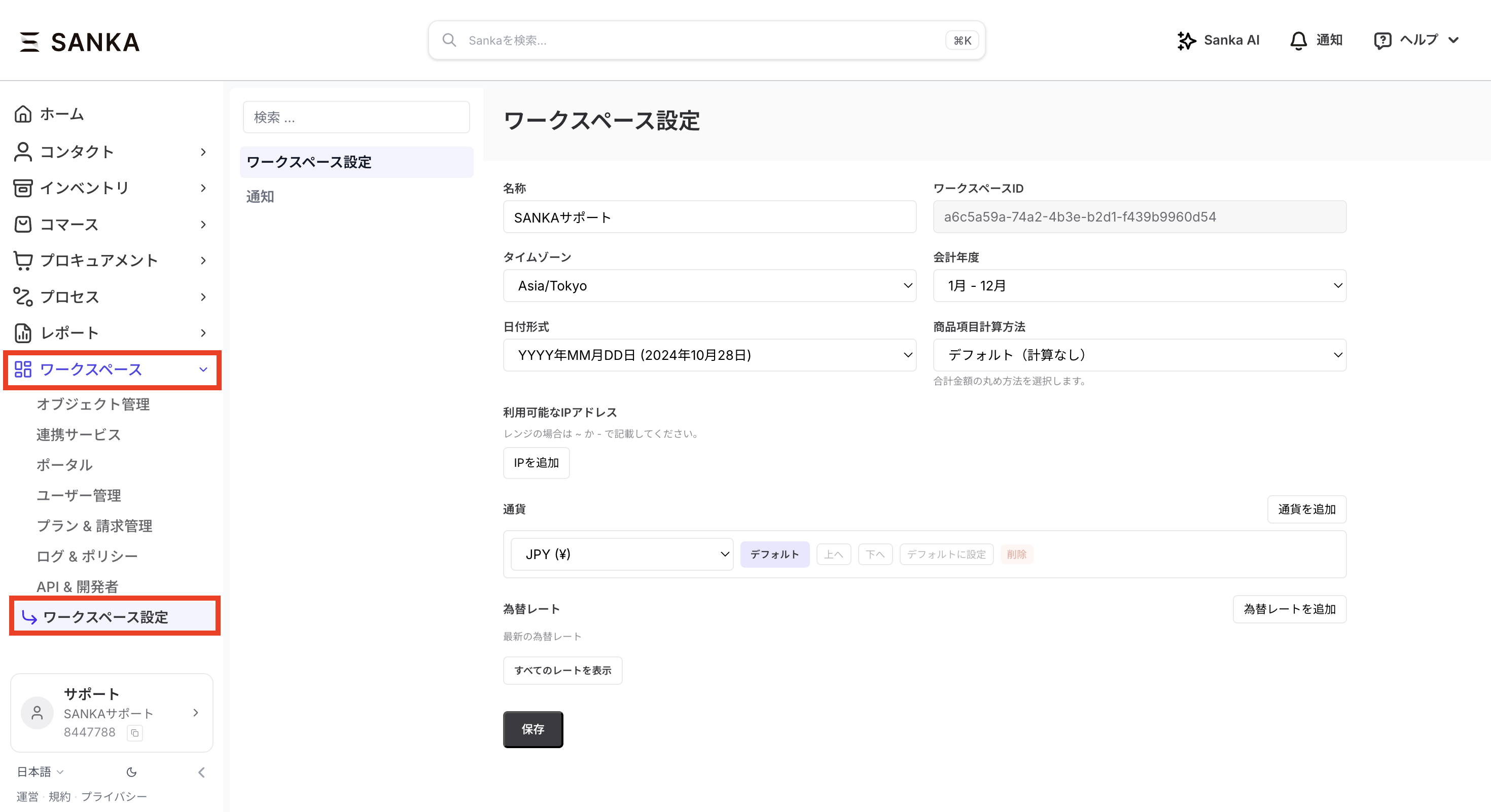
From the left menu in Sanka, open Workspace > Workspace Settings.Workspace settings are visible only to users with the required permissions. If you cannot see this page, ask your workspace administrator to review your permissions.
Available settings
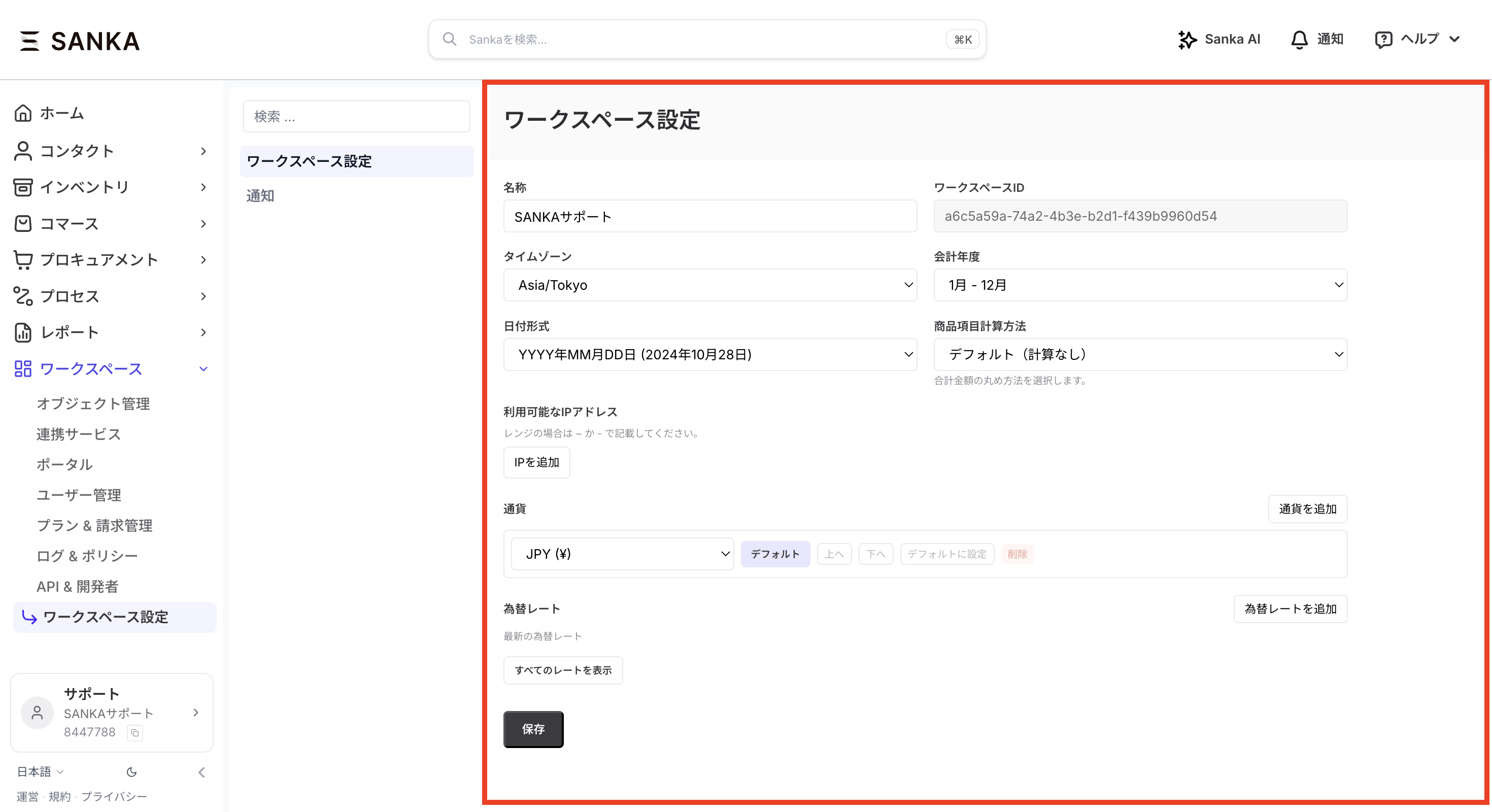
Workspace settings include the following items.
Name
Workspace ID (read-only)
Timezone
Fiscal year
Date format
Line item calculation
Allowed IP addresses
Currencies
Exchange rates
After making changes, click Save at the bottom of the page.
Expected behavior
When workspace settings are configured correctly:
Dates and times use the workspace timezone and date format
Fiscal year settings affect reports and accounting periods that depend on the workspace calendar
Line item calculation controls rounding behavior for records such as orders and invoices
Currency and exchange-rate settings affect how multi-currency values are displayed and calculated
Allowed IP addresses can restrict access even if a user has the right role
Notification rules send alerts only for configured objects, owners, assignees, users, and groups
Users still need the required role and object permission to view or change workspace settings
Round total amounts
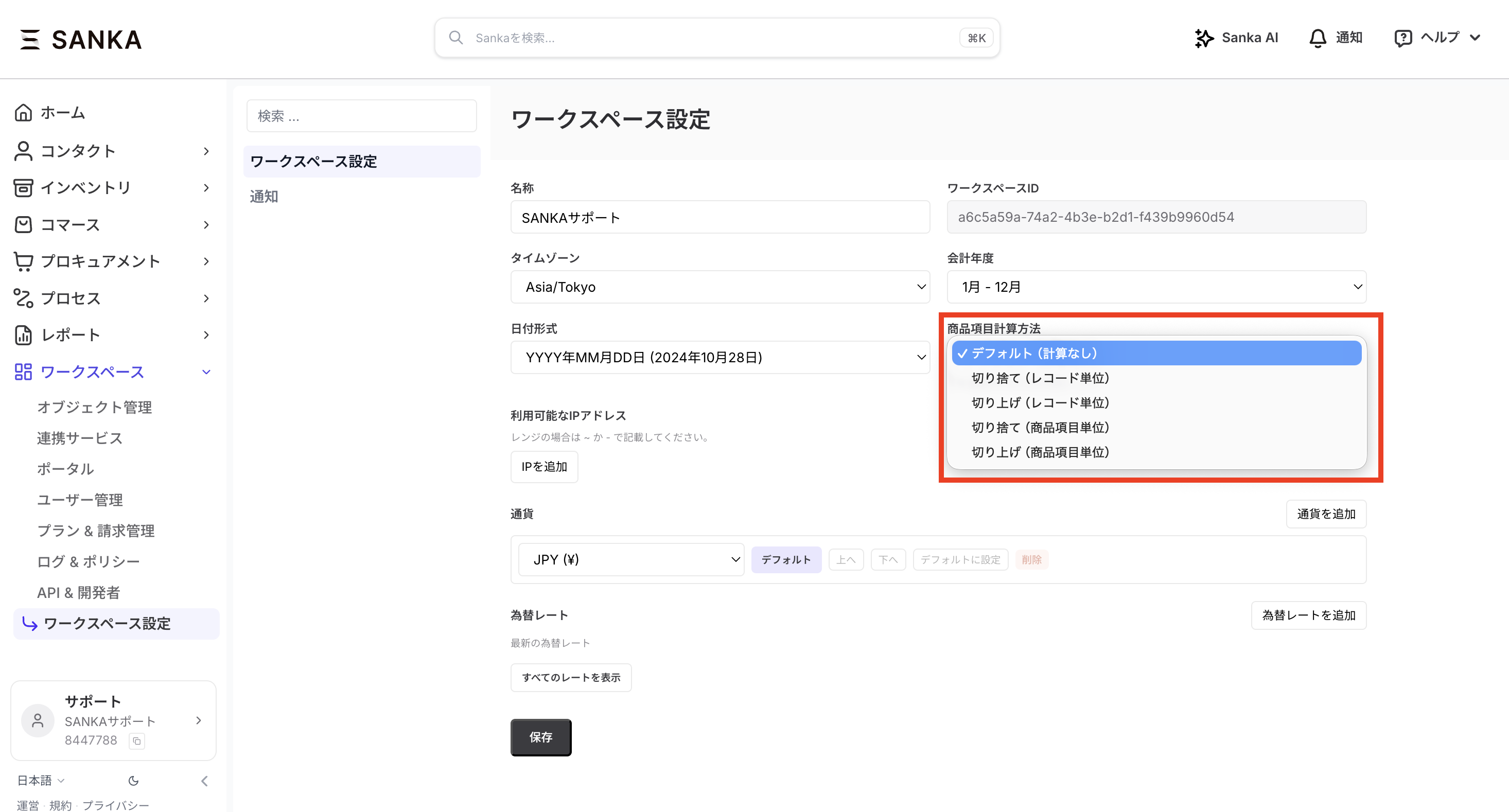
If records such as Orders show decimal places in total amounts, configure Line Item Calculation to control rounding.Common options include:
Default (no calculation)
Round down by record
Round up by record
Round down by line item
Round up by line item
Choose the option that matches your business rule, then click Save.
Troubleshooting
Totals or decimals look wrong
Review Line Item Calculation, currency, item line values, discounts, tax settings, and rounding rules. If different users see the same total, it is likely a workspace or record configuration issue rather than a user-specific bug.
Dates, due dates, or reports use the wrong period
Check timezone, fiscal year, and date format. For imported records or integration sync, also confirm the source system timezone and date values.
A user cannot open Sanka from their network
Check Allowed IP addresses and the user's current network. IP restrictions can block access even when the user's role and object permissions are correct.
Notifications are missing
Review personal notification settings, workspace notification rules, record owner or assignee fields, selected users or groups, and email delivery. A notification is expected only when the configured object and event match.
An AI or teammate suggests changing code
First compare the behavior against workspace settings, modules, user permissions, object settings, and record history. Treat it as a possible product bug only after those configuration checks match the expected setup.
Checkpoints
Use workspace settings, modules, user permissions, record history, notification rules, and audit logs to confirm workspace-level behavior before replying to a customer or asking AI to make a code change.
Search Sanka...
Review workspace setting behavior
Logs
Search logsAll actionsAll dates
ID / ActionDateTarget / ItemChangeActor
3Reviewed line item calculation2026/05/10 11:00Workspace settingsConfirmed order totals use round down by recordClaude integration
2Checked notification rule2026/05/10 11:10Order notificationsConfirmed notifications trigger when order owner changesSanka admin
1Reviewed access restriction2026/05/10 11:20Allowed IP addressesConfirmed user network was outside the allowed rangeSanka user
A safe review should include the workspace setting, affected object, user role, module visibility, record values, notification rule, and whether another admin recently changed settings.
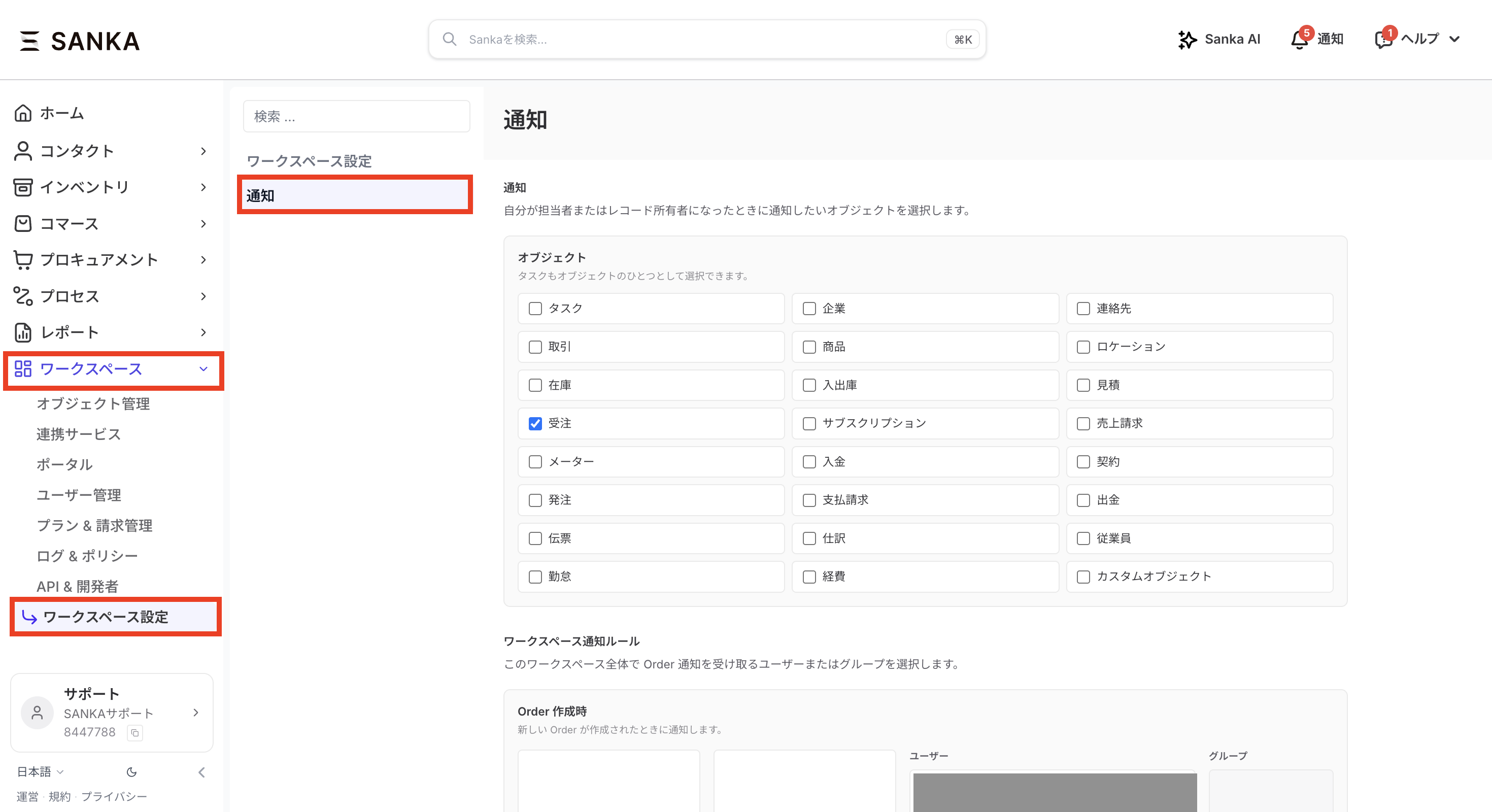
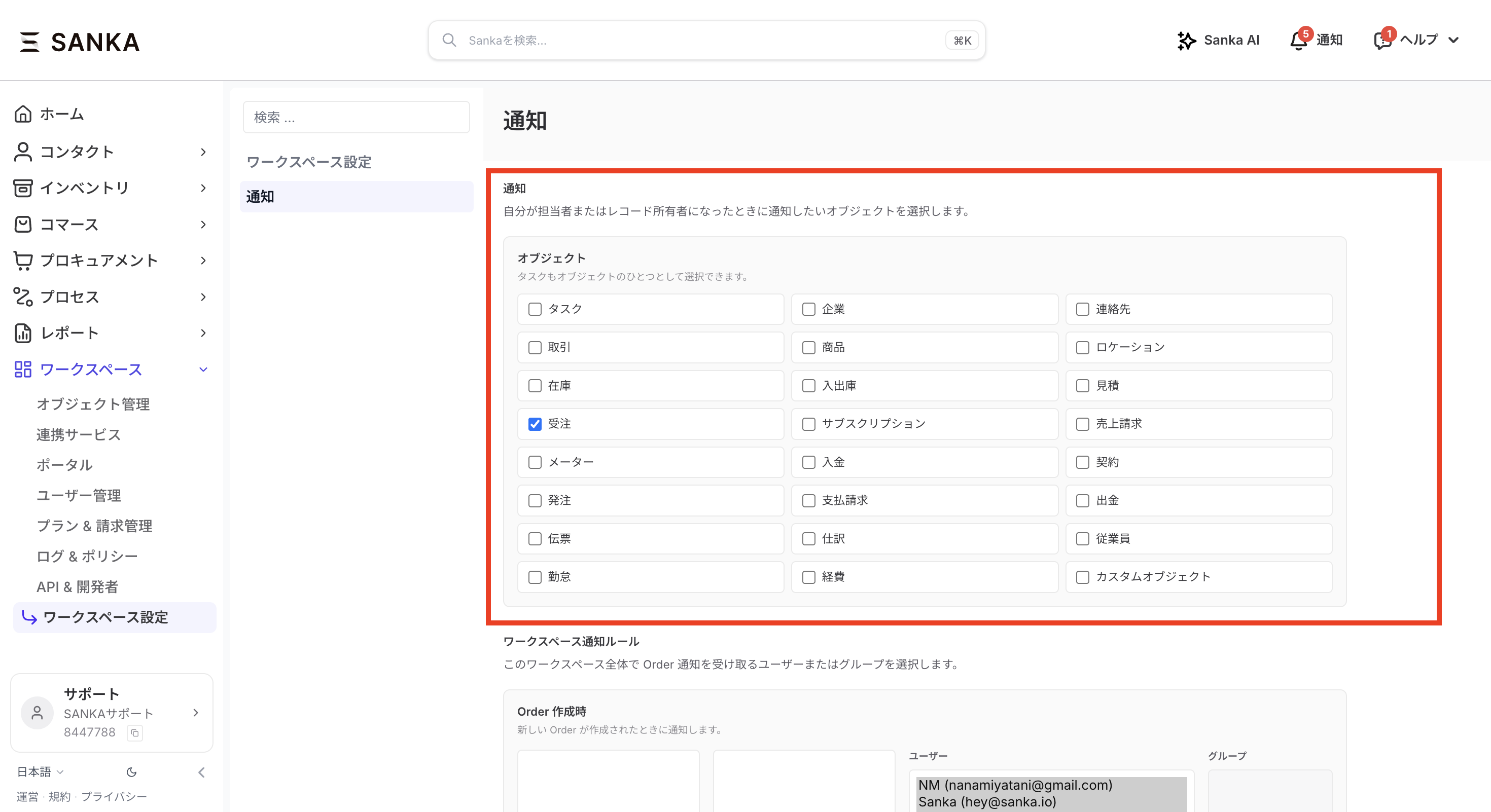
Notification settings are available from Workspace > Workspace Settings > Notifications.
Personal notifications
Select the objects that should notify you inside Sanka when you become the assignee or record owner.Check the objects you want to receive notifications for, then click Save.
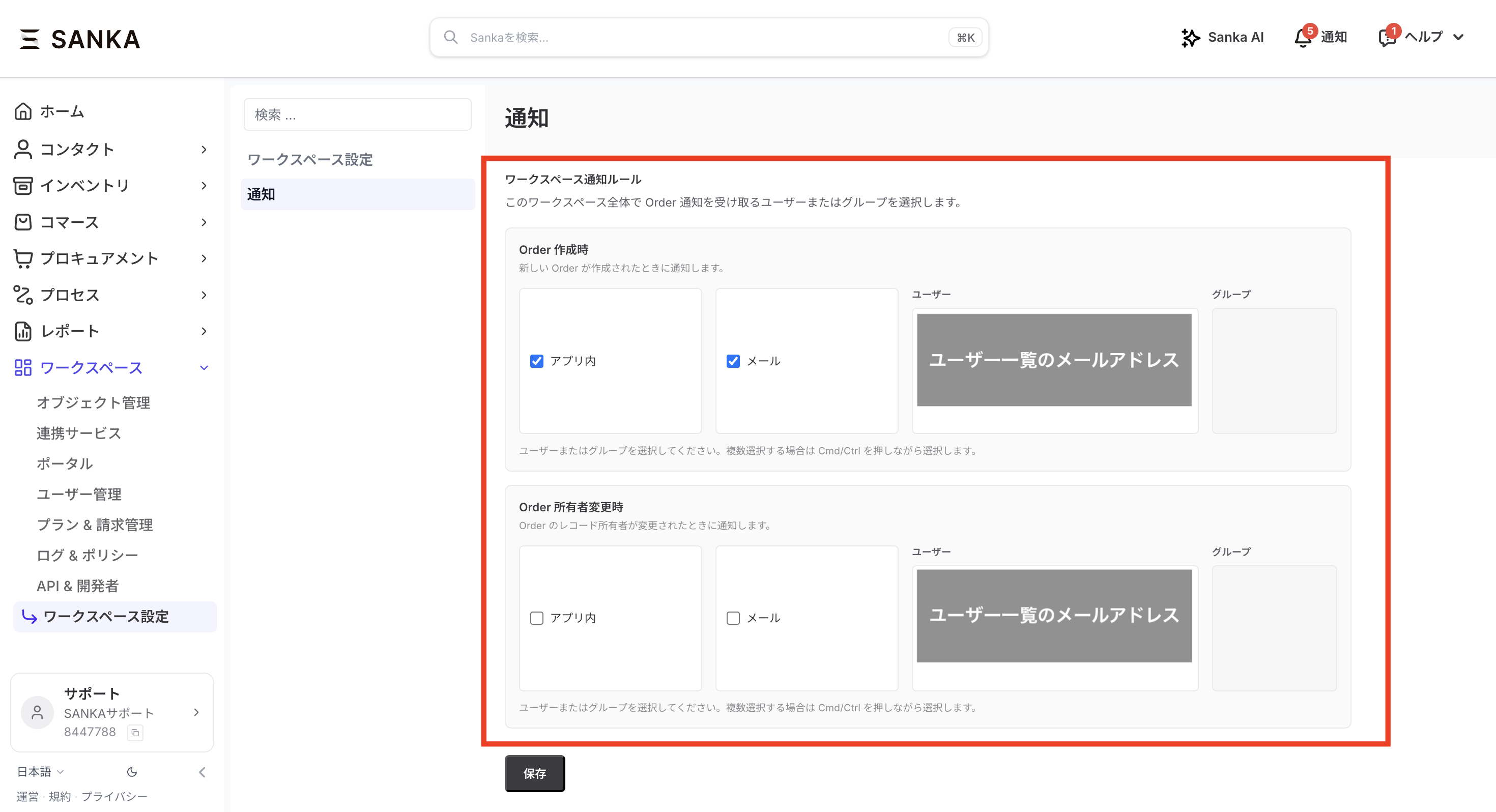
Workspace notification rules
Workspace notification rules currently support Order notifications. You can notify selected users or groups when an Order record is created or when the Order record owner changes.
In-app: Shows a notification inside Sanka
Email: Sends a notification to the email address registered in Sanka
Users / Groups: Select who should receive the notification
After making changes, click Save at the bottom of the page.