NP deferred payment order synchronization guide
We will explain the steps to import NP deferred payment transaction information into Sanka orders and output it from Sanka if necessary.
Last updated: May 28, 2026
Guide Overview
We will summarize the steps to synchronize NP deferred payment transaction information as Sanka orders and arrange the flow of billing and shipping.Advance preparation
- NP deferred payment cooperation guide has been completed (if not completed, please implement "NP deferred payment cooperation guide" first)
- The information necessary for receiving an order (business partner, amount, details, date) is ready to be registered in Sanka.
Step 1. Start importing orders
- Open the Orders object in Sanka.
- Click Import at the top of the screen.
- Select Linked service as the import source and specify NP deferred payment.
Step 2. Check and import field mapping
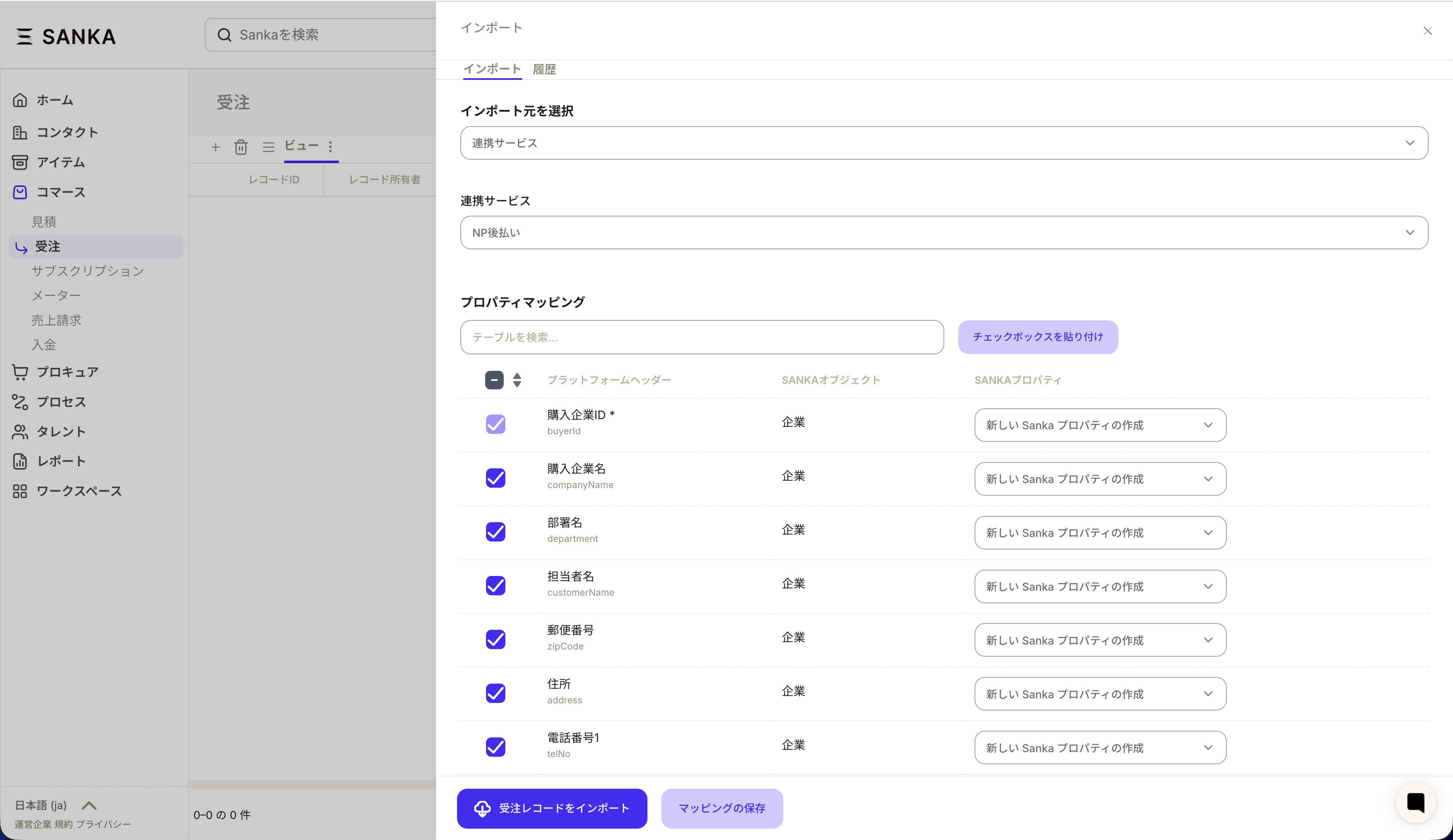
- Check the correspondence between NP deferred payment items and Sanka order properties.
- Set to synchronize only necessary items such as details (product name, quantity, amount).
- Run Create to import.
Step 3. Export orders from Sanka
- Select the order you want to reflect in NP deferred payment in the order object.
- Click Export and specify NP deferred payment as the link destination.
- Check and perform item mapping as necessary.
Step 4. Check the sync result
- Confirm the import /Once the output is complete and order details (business partner, amount, details).
- If there are any omissions, review the missing required information and input format.
Step 5. Operational points
- It is safe to try it with a small amount of data before switching to production operation.
- To avoid discrepancies in the description of the details, it will be easier to manage the product names by setting rules such as "Apple, Banana, Peach, Orange".
- The billing and shipping flow after synchronization will be smoother if you decide on the division of roles among the people in charge.
- For field-level details, see NP Payment field mapping.