
Input/Issuance Object Overview
Introducing an overview of the goods receipt/issue object and how to register records.
What is the receipt/issue object in Sanka?
The inventory movement object in Sanka's inventory management solution is a key element for tracking and managing the movement of a company's inventory. This object records details of any transactions that affect inventory levels, such as purchases, sales, returns, and transfers between locations. Simply put, this object acts as a transaction log that records each instance of adding or removing inventory, ensuring that inventory levels are accurately tracked and updated in real-time.Purpose of Inventory Receipt/Issuance Object
Inventory receipt/issue objects in Sanka are used for the following purposes:- **Purchase record: **When a product is received from a vendor, the inventory movement object records the addition of that product to inventory.
- **Sales and Shipping Tracking: **When an order is processed, we record the removal of sold items from inventory.
- Manage returns: When a customer returns an item, the inventory movement object tracks the item's return to inventory.
- **Inventory movement management: **As inventory moves between different locations, such as between warehouses or stores, the movement is recorded to accurately reflect inventory levels at each location.
- **Monitoring Adjustments: **Manual adjustments due to broken items, reduced inventory, etc. are recorded as inventory transactions.
Main properties of inventory movement objects
Following are the important fields of the inventory movement object.- **Transaction ID: **A unique identifier for each transaction that allows businesses to easily reference and track specific inventory movements.
- **Transaction Type: **Indicates the type of transaction being recorded (such as inventory receipt or issue).
- **Product ID: **Indicates the specific product involved in the transaction. This field is linked to the related product object containing detailed information about the product.
- **Quantity: **Amount of product added to or removed from inventory.
- **Transaction date and time: **The date and time the transaction took place, ensuring that all inventory movements are accurately timestamped.
- **Inventory Type: **Indicates the type of inventory being added or removed (e.g. Available Inventory, Unavailable Inventory, Reserved Inventory).
How to register a new inventory/issue record
From here, we will introduce how to manage stock receipts and issues. ① Select the "Receipt/Issuance" object and click "New" in the upper right corner. *The inventory object for which the initial inventory is set has already been registered in the record as a stock receipt.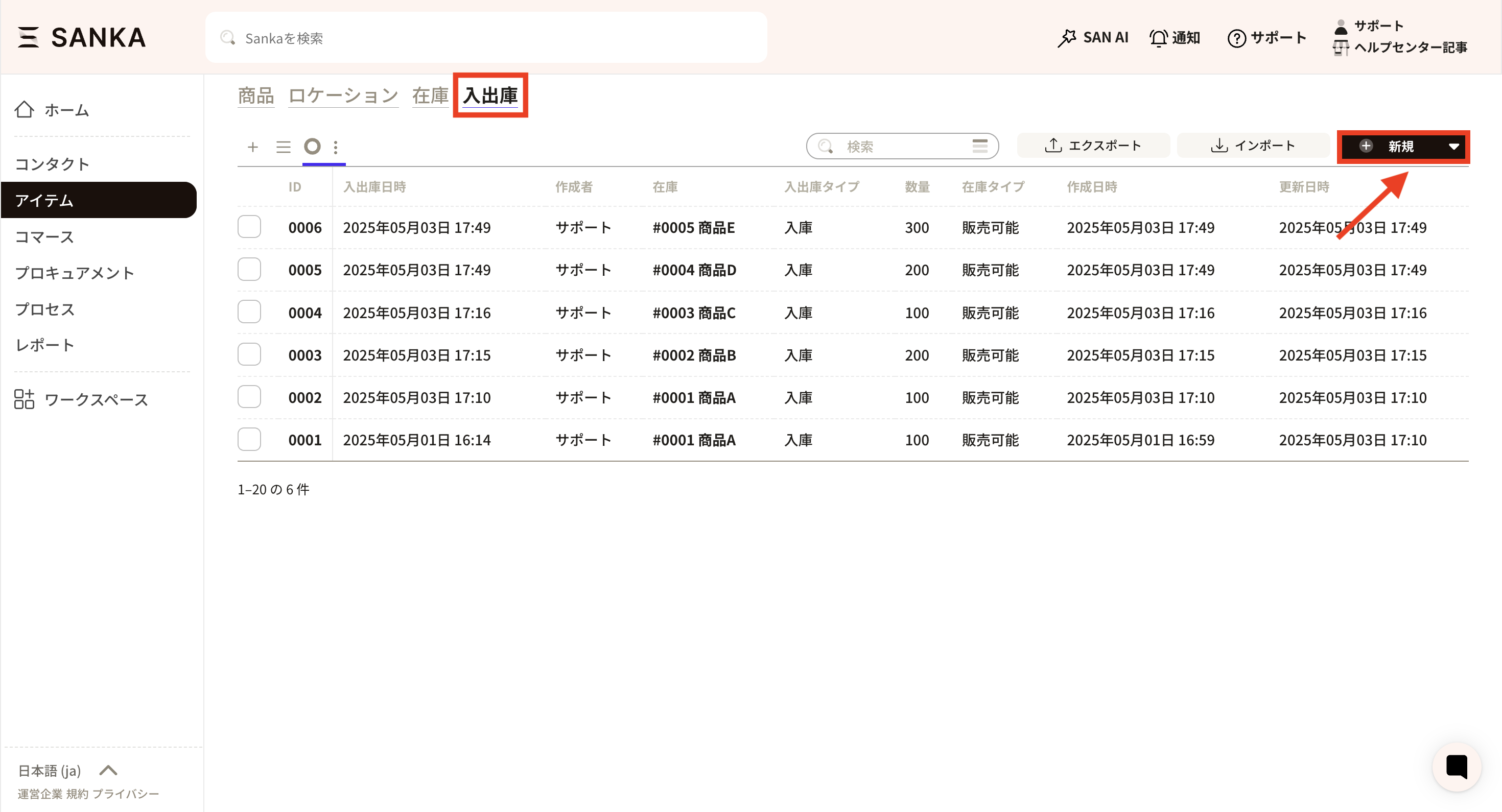 ② The “Create warehouse record” menu will be displayed.
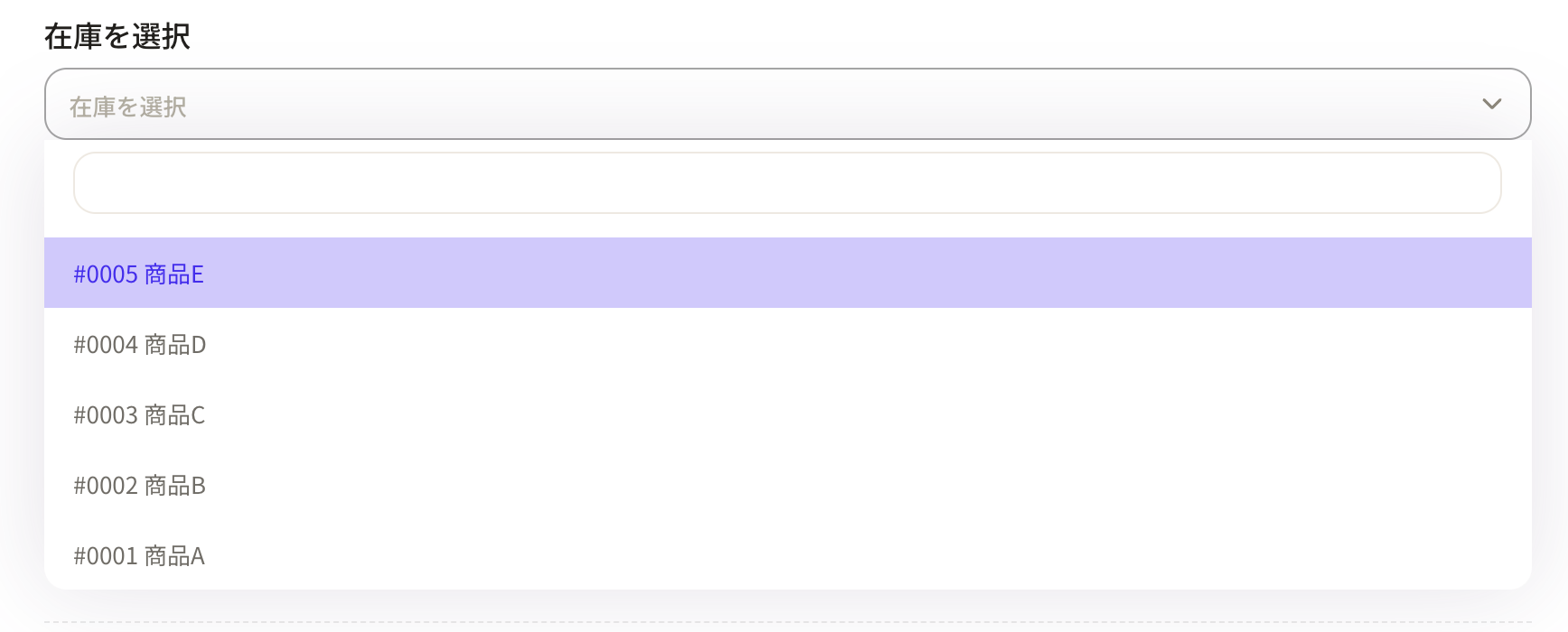
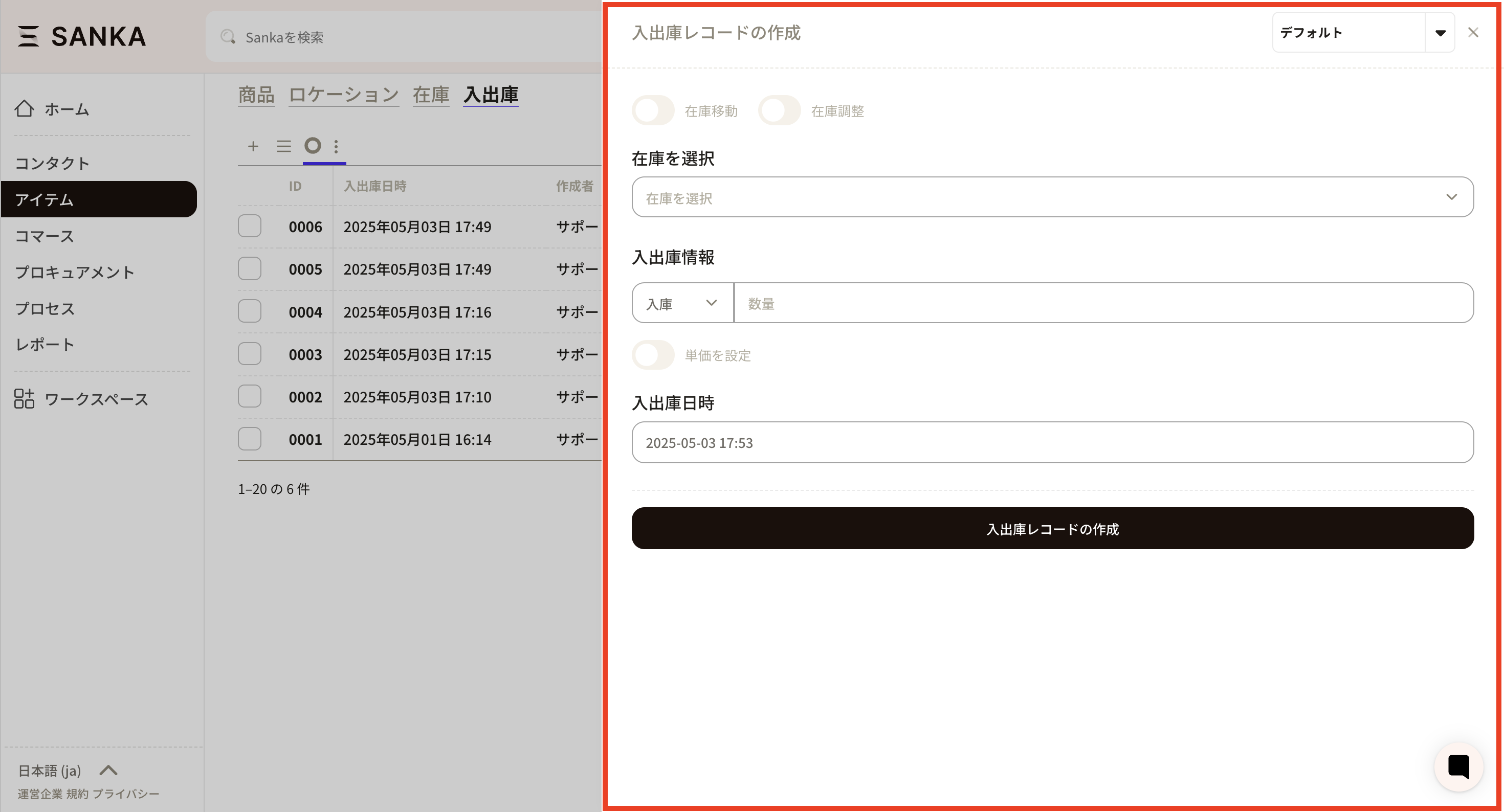 ③ First, select inventory. Only products registered in the inventory object are displayed here.
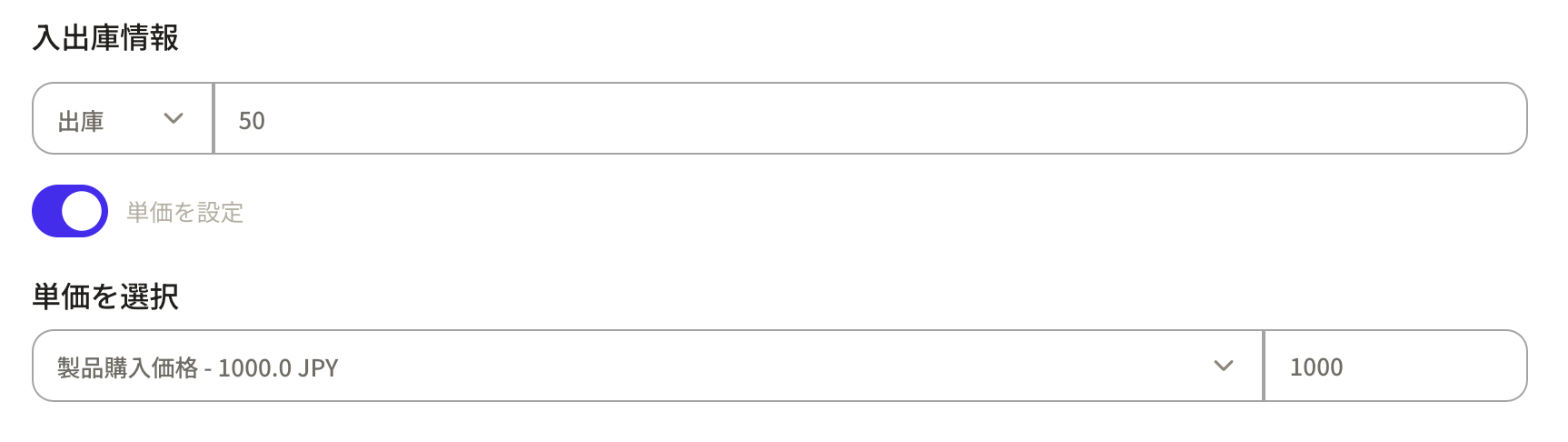
 ④Next, register the "warehousing/receiving information".
By clicking on the frame on the left, you can select "Inbound" or "Outbound." Enter the quantity in the box on the right
④Next, register the "warehousing/receiving information".
By clicking on the frame on the left, you can select "Inbound" or "Outbound." Enter the quantity in the box on the right
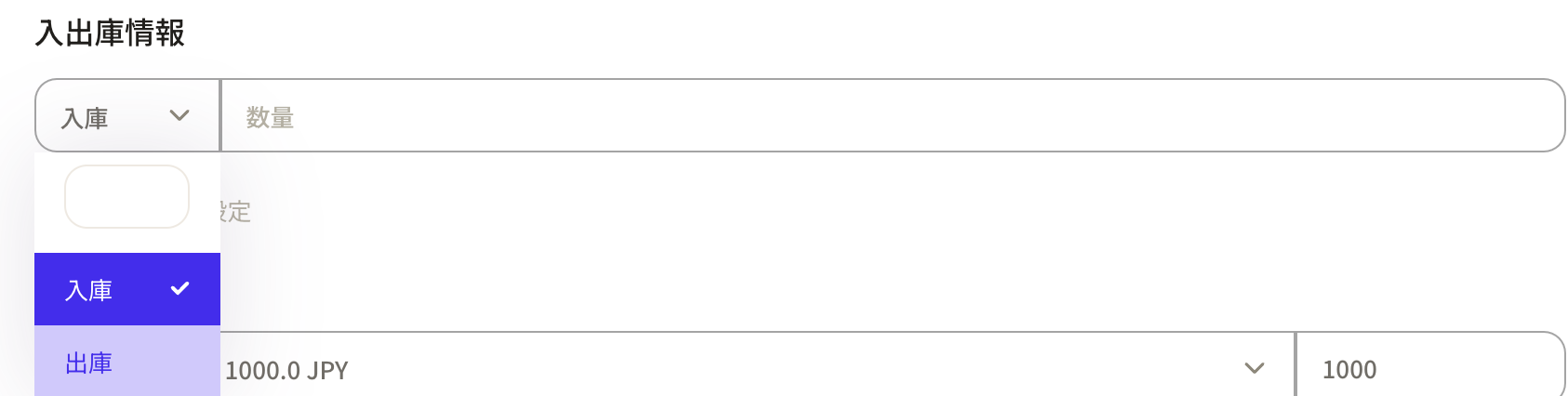
 ⑤ Once the shipping information is entered, the unit price will be displayed automatically. If the unit price has changed, please edit it here.
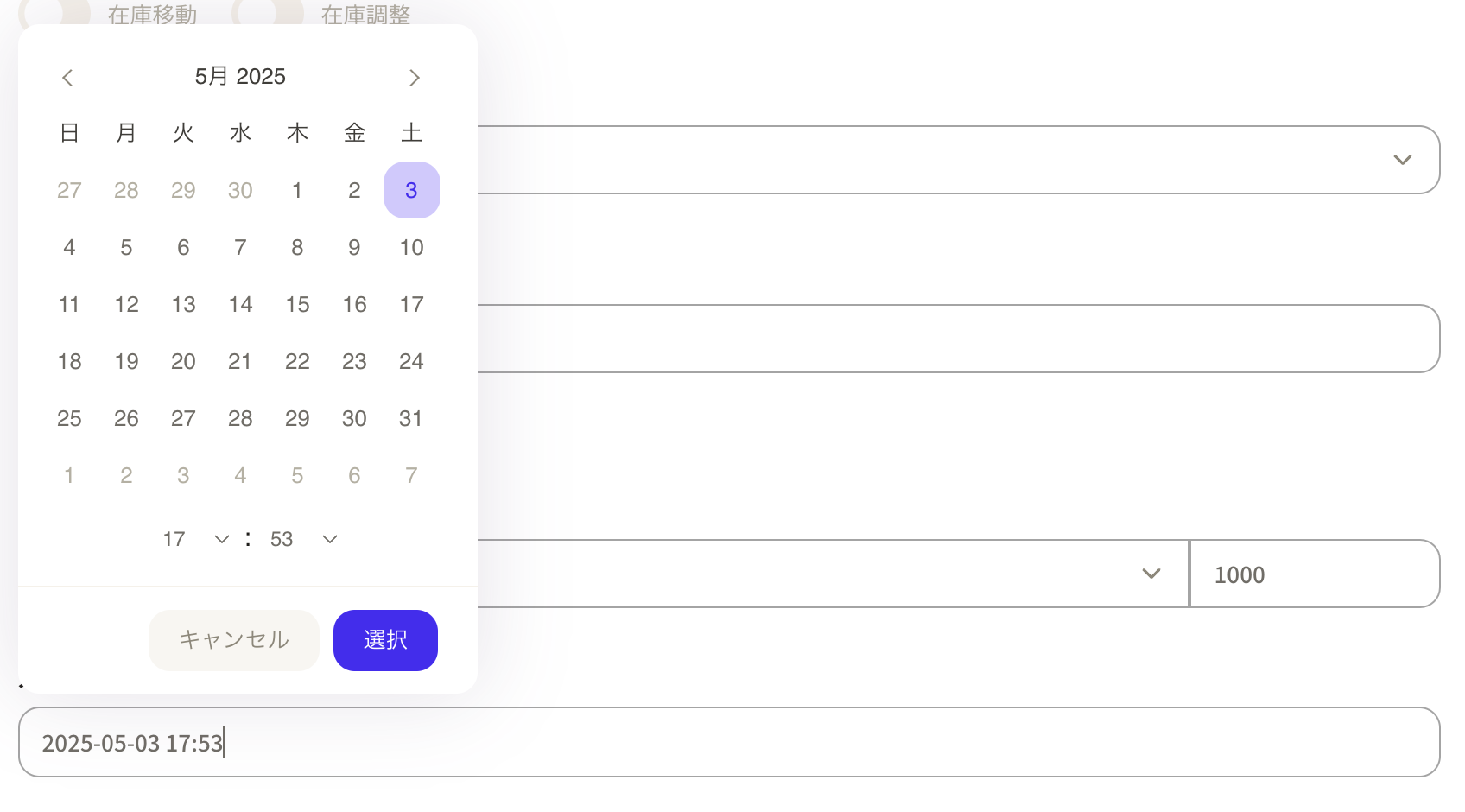
 ⑥The stocking date and time will be entered automatically. When you click on the frame, a calendar will be displayed and you can set it freely.

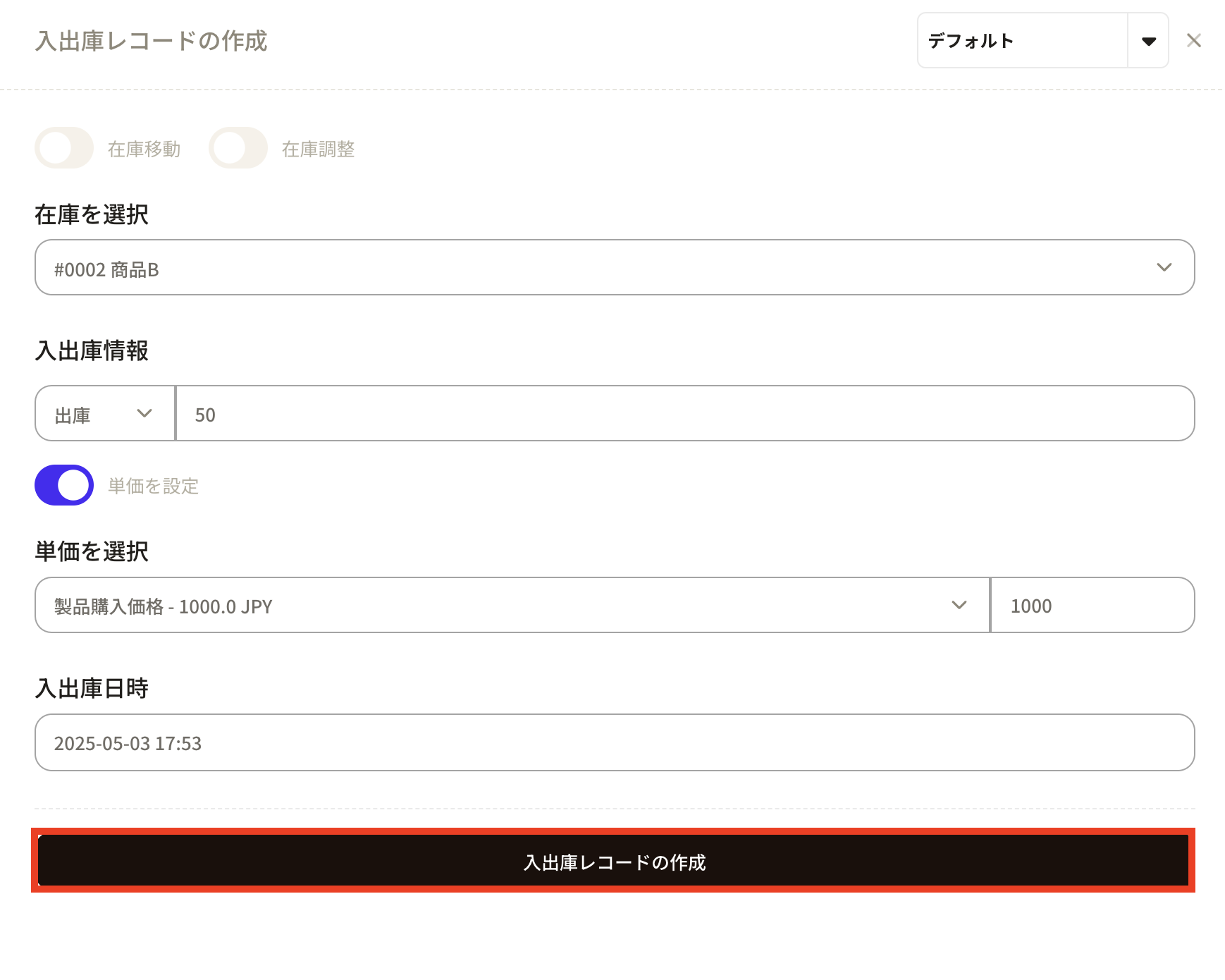
 ⑦This time, as an example, we shipped 50 items of product B. After entering the required information, press "Create Incoming/Outgoing Record".
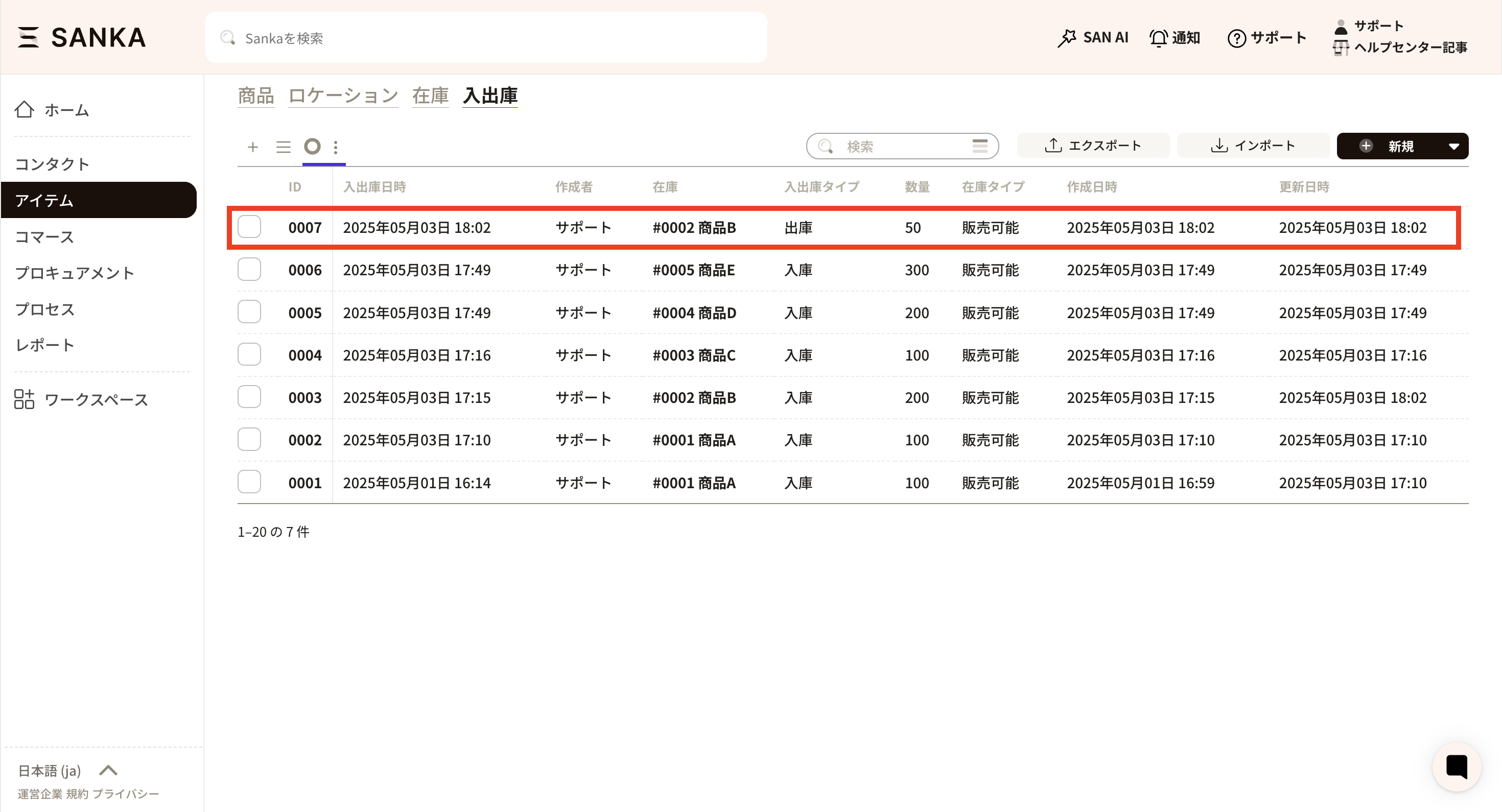
 ⑧ Information has been updated on the list screen of the "Receipt/Issuance" object. By the way, the information in the "Inventory" object record will also be updated with the number of items in stock.
How to register stocking and issuing records in bulk in CSV
For instructions on creating and updating warehouse records in CSV in bulk, please see How to create and update warehouse records in CSV in bulk.How to modify registered information
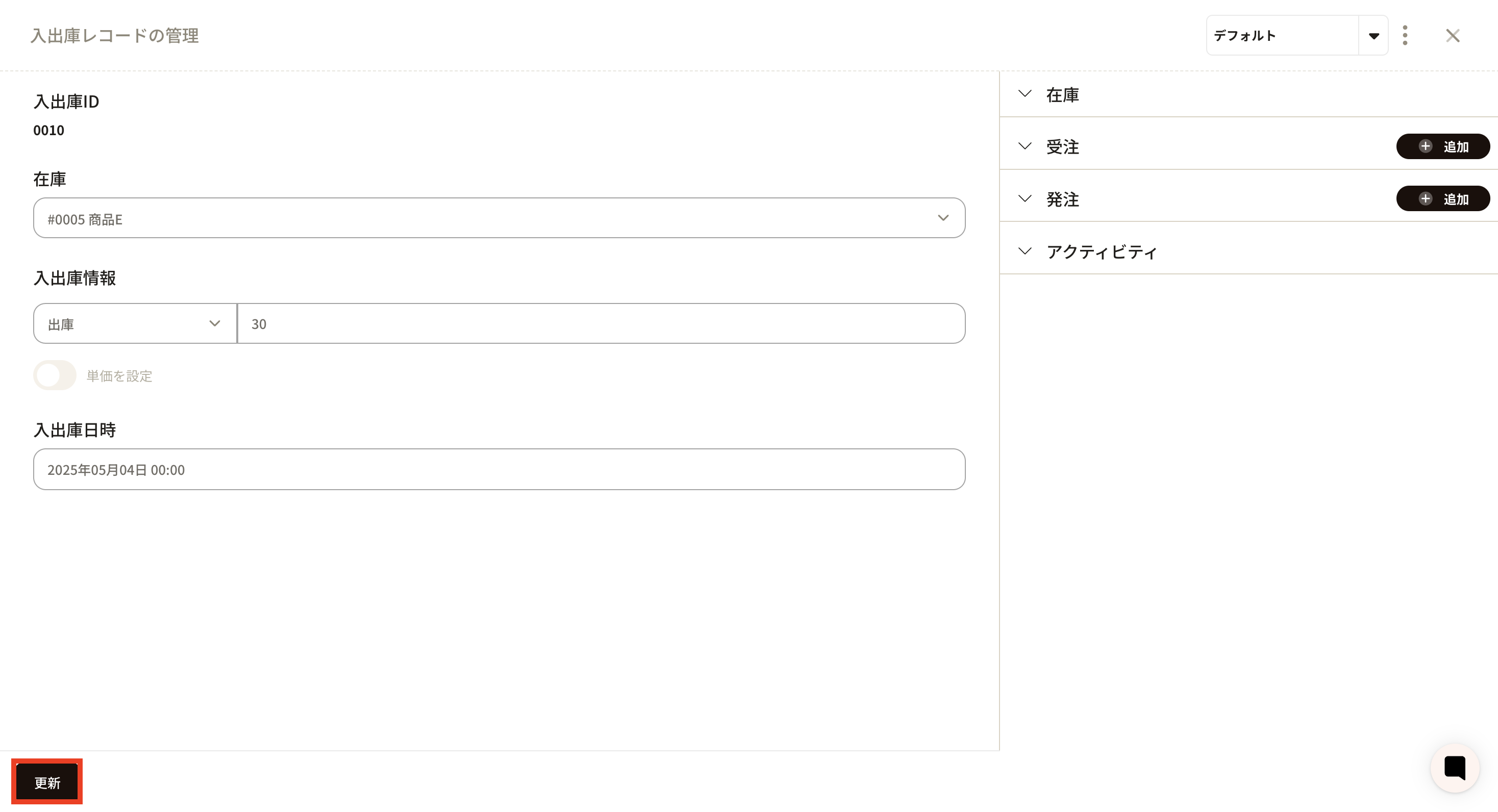
①Click the ID of the applicable record.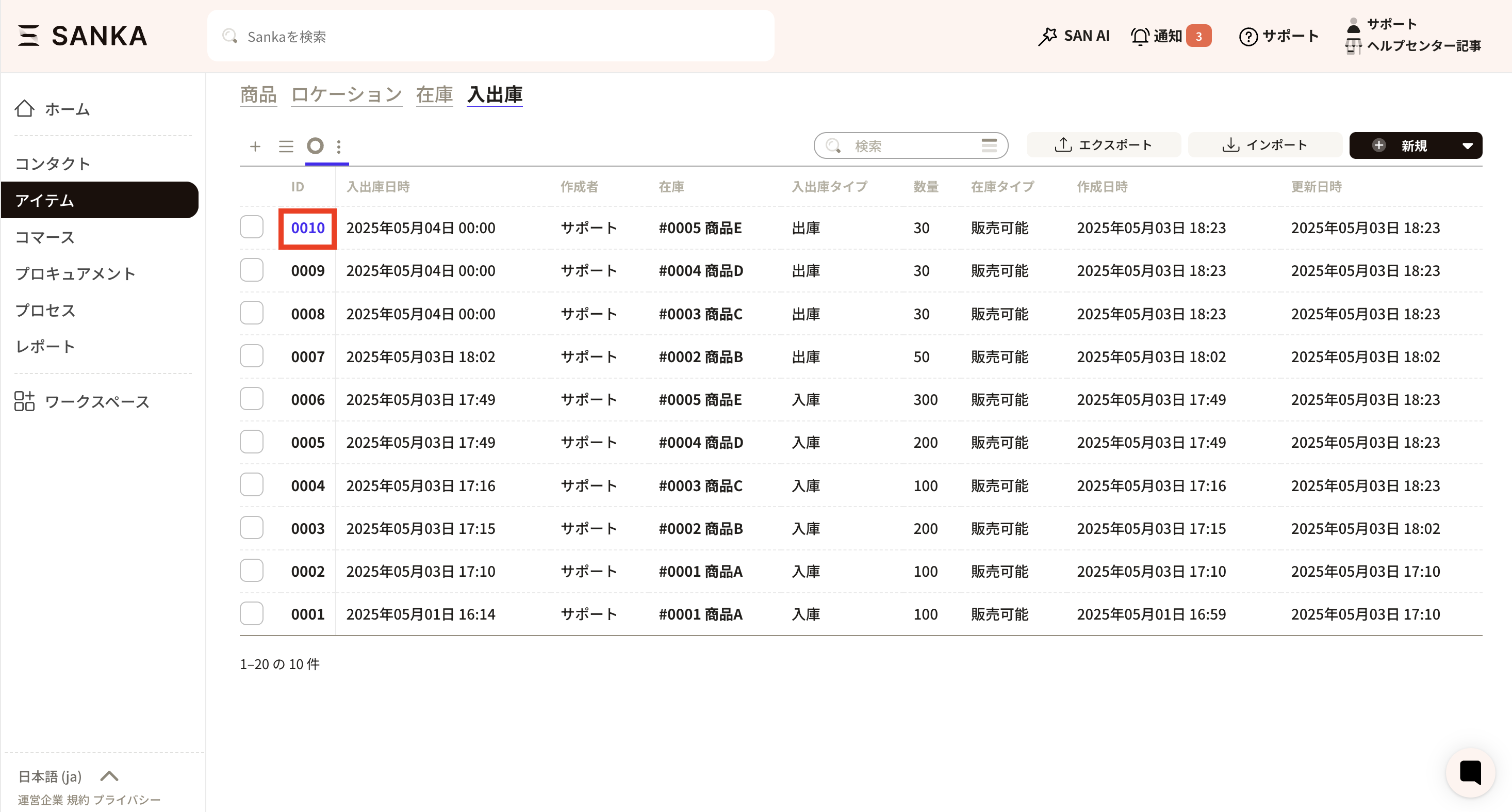 ② The "Management of warehouse records" screen will be displayed, so edit the information. Click the update button to register.
How to manage incoming and outgoing goods using a barcode reader
overview
In this guide, we will explain how to use Sanka's inventory management feature to manage incoming and outgoing logs using barcodes. Learn how to easily scan barcodes using your smartphone and register incoming and outgoing data directly into the system. In the video below, you can check the method while watching the demo screen. Please also check.Login and preparation
First, log in to Sanka. Smartphones and computers, Sanka is cloud-based, so you can access it from any device. Next, set the product code and barcode.- Register your product. This time, we will proceed using "Product A" as an example.
- Set the product code. Use "Code 128" or "JAN code" as the barcode format.
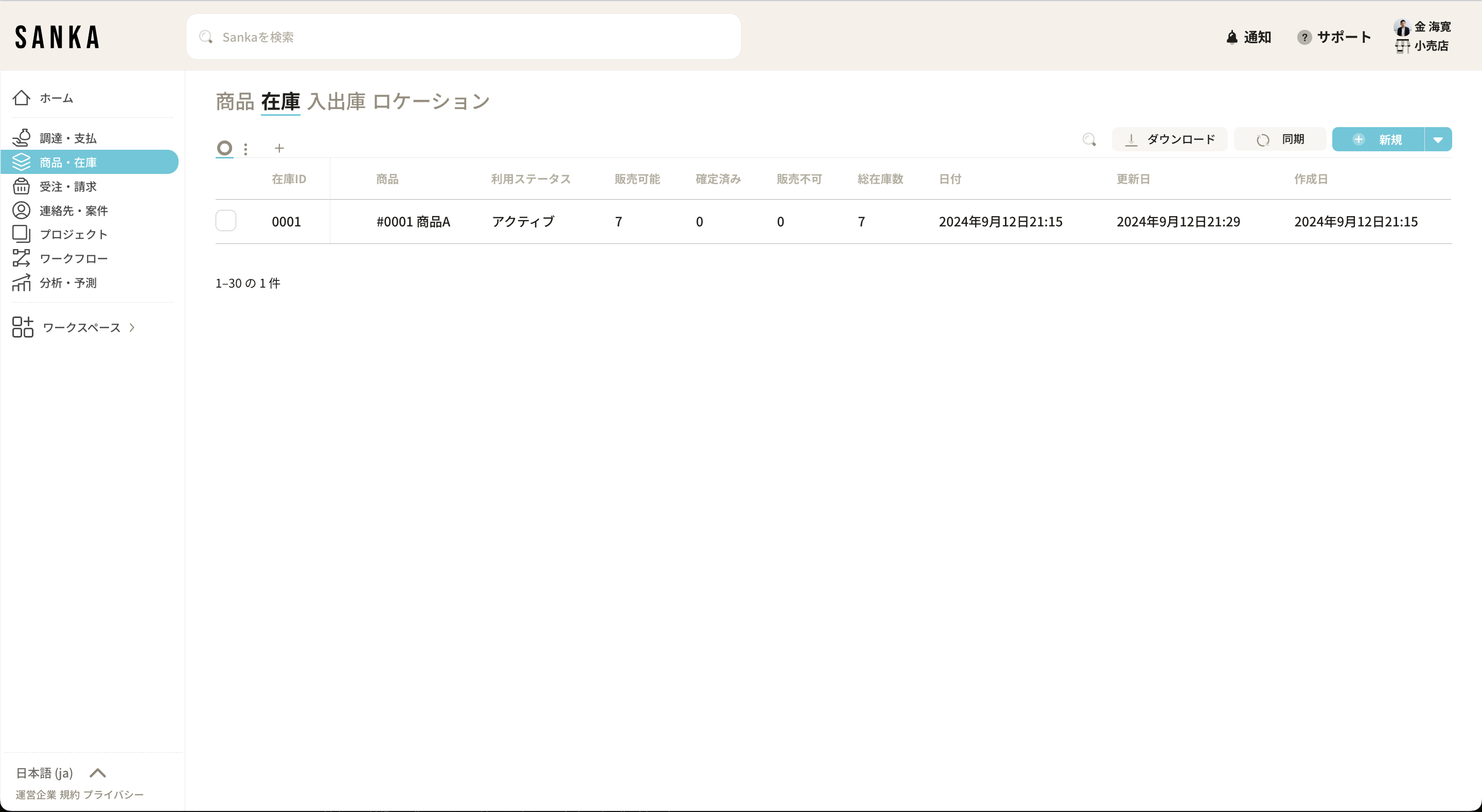
Register product code
- Set the product code. Apply uniqueness restrictions to product codes to prevent multiple registrations of the same product code.
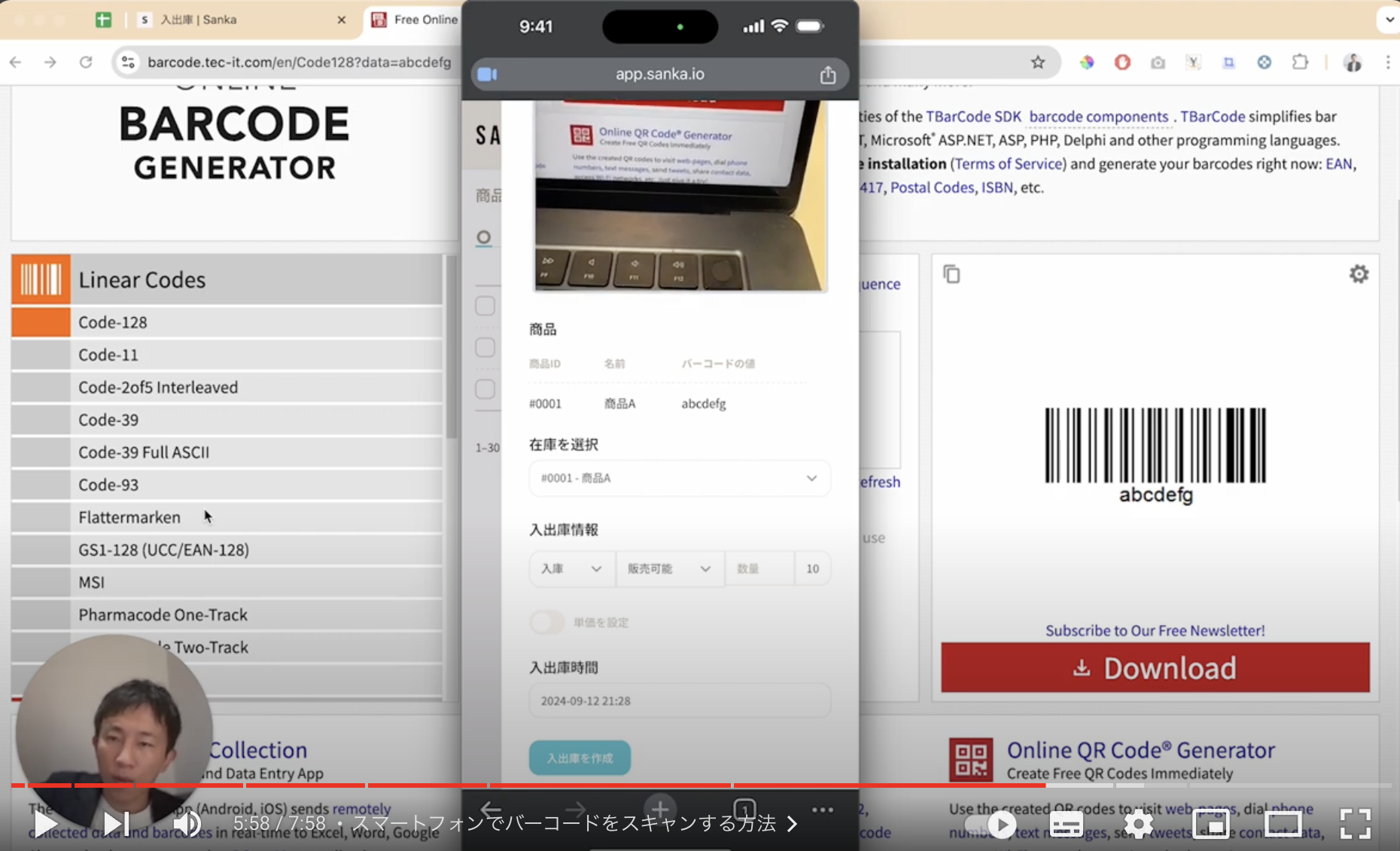
- Create a barcode and link it to the product. This time we will use a barcode called "ABCDefg".
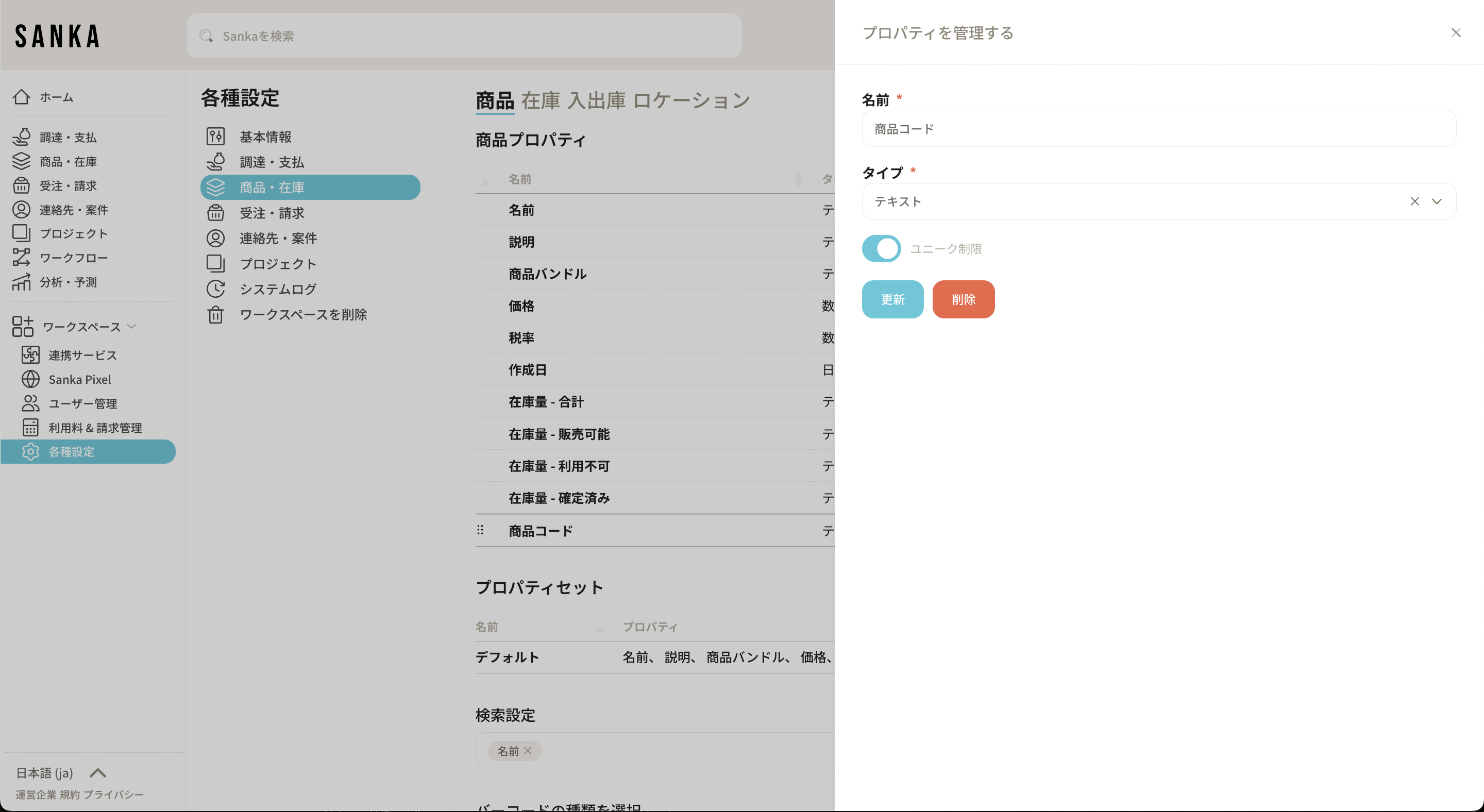
Inventory inventory
- Perform an inventory with the initial stock of product A as 10 items.
- If you want to enter inventory by scanning a barcode, you can enter it manually, but this time we will scan the barcode and register 10 items.
Registration of arrival and departure
- From the Sanka smartphone screen, select the "Product/Inventory" menu and select "Receive/Receive".
- Go to the barcode creation screen and set the barcode type as "Code 128" and the column to query as "Product Code".
- Read the product code "ABCDefg" created earlier and select the linked product A stock.
Execution of goods issue
- When performing a stock issue operation, make settings to issue a desired number of items from the inventory of products with matching barcode values.
- Enter the issue information and press the "Create Receipt/Issuance" button to reflect that the number of items in stock has decreased from 10 to the desired number.